Hugo Huang
11 December 2025
How to launch a Deep Learning VM on Google Cloud
Setting up a local Deep Learning environment can be a headache. Between managing CUDA drivers, resolving Python library conflicts, and ensuring you have enough GPU power, you often spend more time configuring than coding.
Google Cloud and Canonical work together to solve this with Deep Learning VM Images, which use Ubuntu Accelerator Optimized OS as the base OS. These are pre-configured virtual machines optimized for data science and machine learning tasks. They come pre-installed with popular frameworks, such as PyTorch, and the necessary NVIDIA drivers.
In this guide, I’ll walk you through how to launch a Deep Learning VM on GCP using the Console, and how to verify your software stack so you can start training immediately.
Why use a Deep Learning VM?
- Pre-installed frameworks: No need to pip install generic libraries manually.
- GPU-ready: NVIDIA drivers are pre-installed and verified.
- Jupyter integration: Seamless access to JupyterLab right out of the box.
How to make a Deep Learning VM in GCP
Step 1: Navigate to the GCP Marketplace
First, log in to your Google Cloud Console. Instead of creating a generic Compute Engine instance, we want to use a specialized image from the Marketplace.
- Open the Google Cloud Console.
- In the search bar at the top, type “Deep Learning VM”.
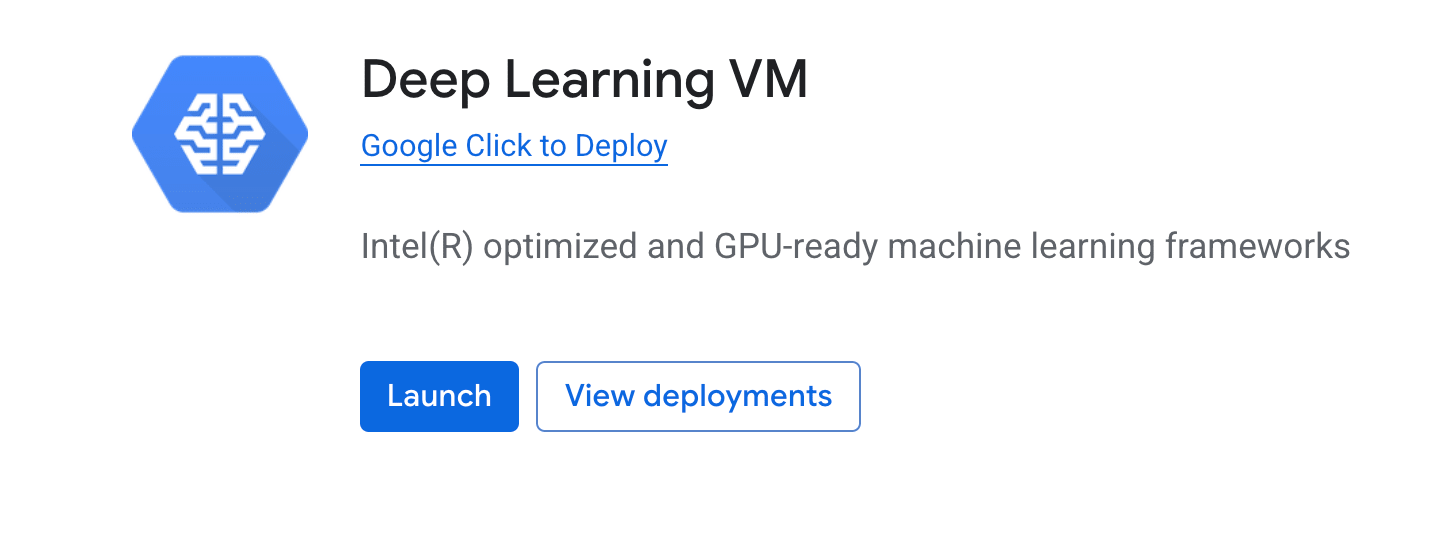
- Select the product named Deep Learning VM published by Google.
Step 2: Configure your instance
Once you are on the Marketplace Deep Learning VM listing page, click Launch. This will take you to the deployment configuration screen. This is where you define the power behind your model.
Here are the key settings you need to pay attention to:
- Zone: Make sure to select a zone that supports the specific GPU you want to use (in my case, I selected the us-central1-f zone).
- Machine Type: Choose a CPU/RAM combination that meets your requirements if you don’t need a GPU.
- GPU Type: You can add your GPU type, such as the NVIDIA T4, A100, or H100.
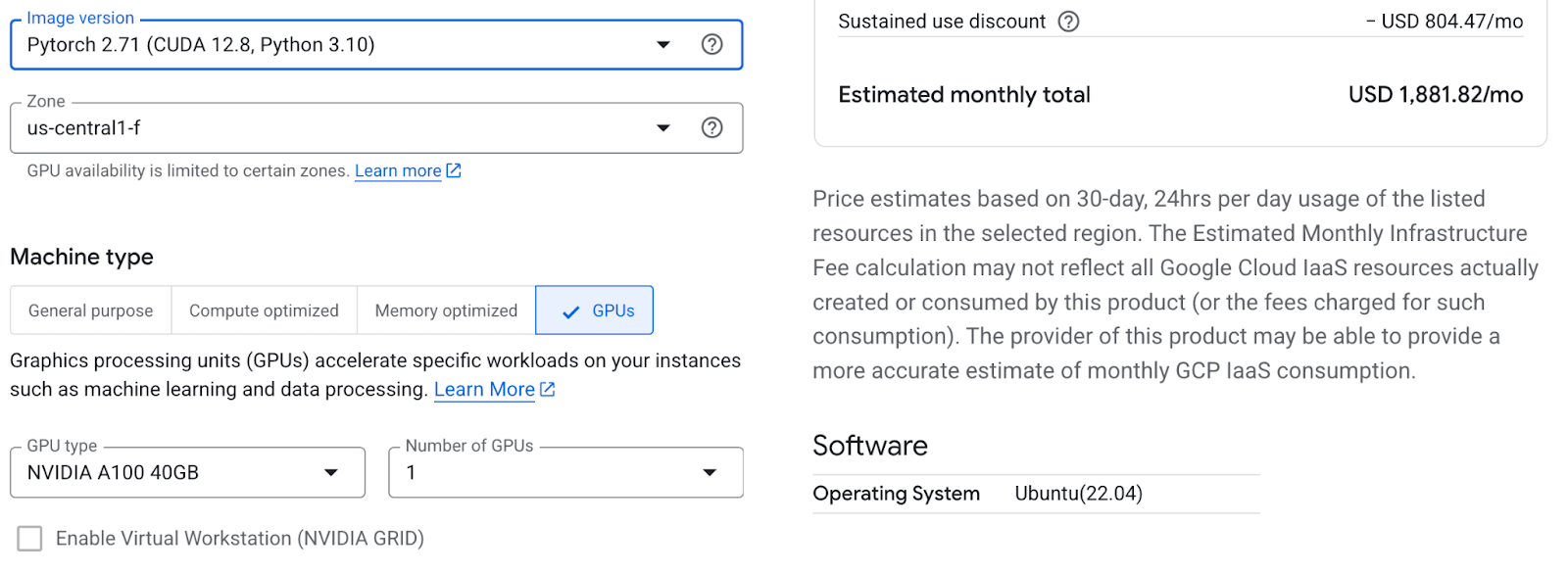
Configuring the VM instance in the Google Cloud Console.
Once you have made your selections, click Deploy.
Step 3: Connect and verify
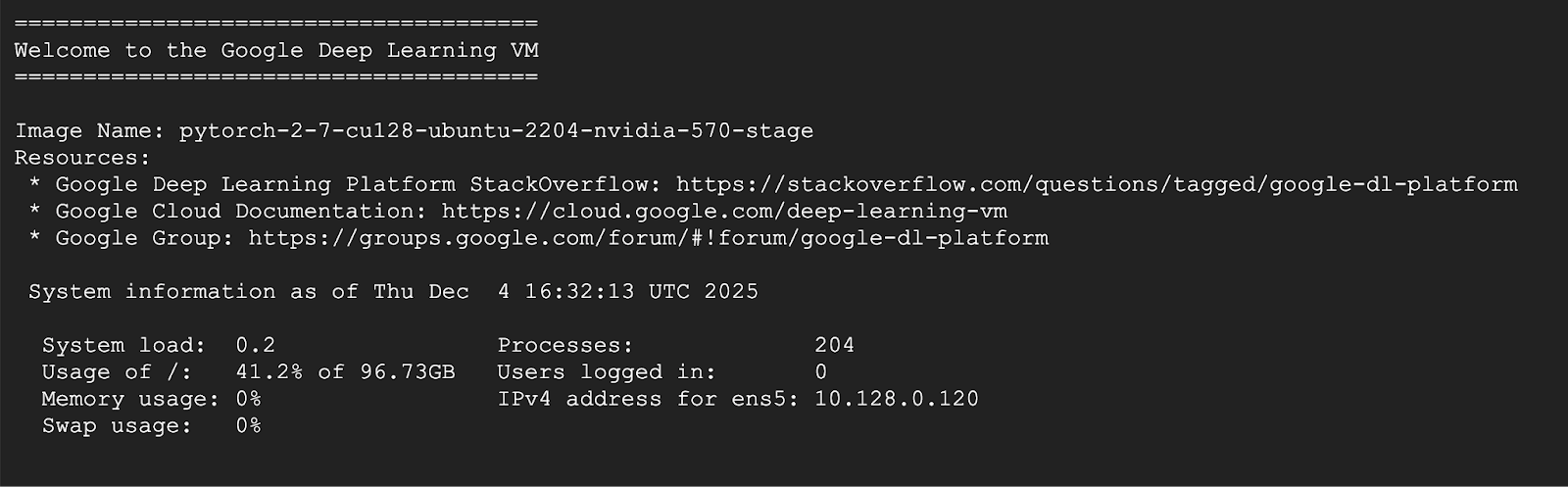
After a minute or two, your VM will be deployed. You can find it listed in your Compute Engine > VM Instances page.
To access the machine, click the SSH button next to your new instance. This opens a terminal window directly in your browser.
Step 4: Check the software stack & drivers
Now, let’s make sure everything is working under the hood.
1. Verify NVIDIA drivers
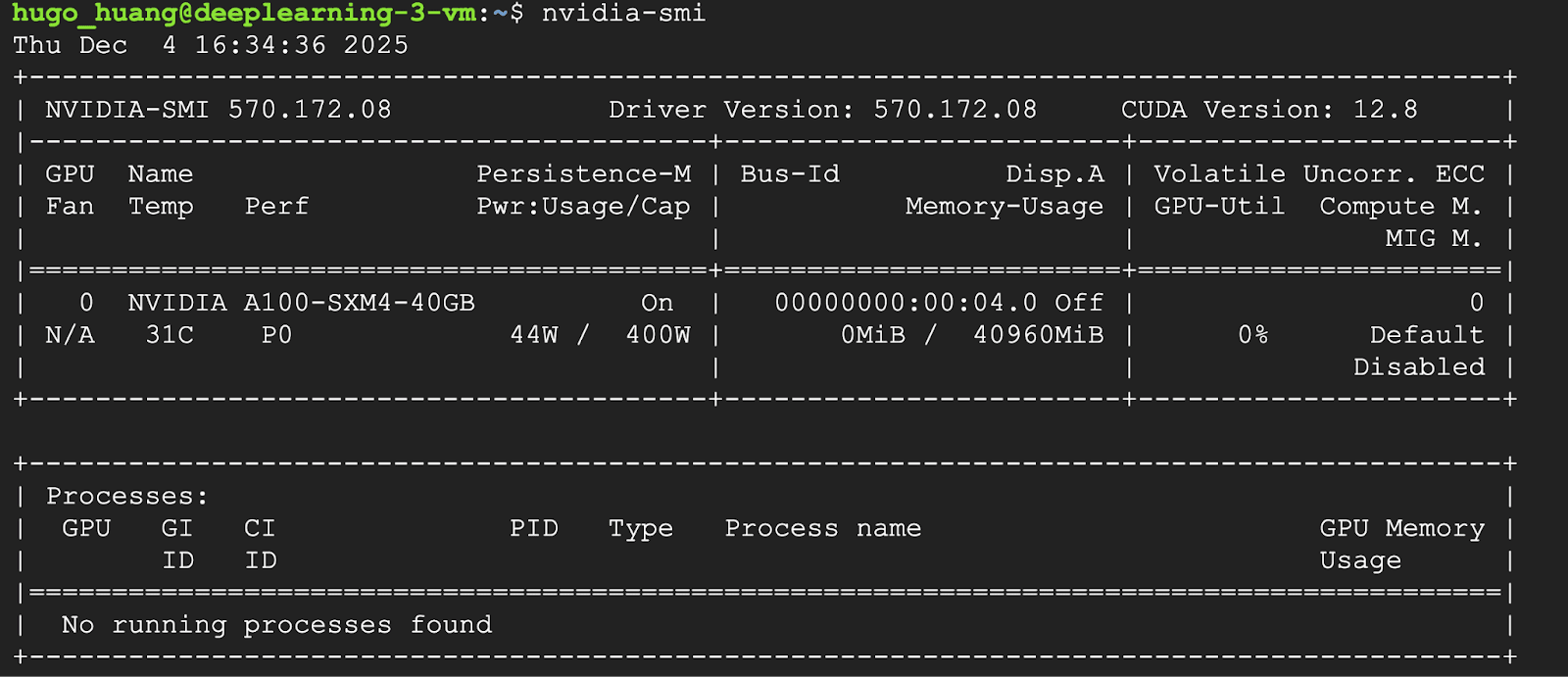
If you have attached a GPU, the most important check is to ensure the drivers have loaded correctly. Run the following command in your SSH terminal:
nvidia-smi
You should see a table listing your GPU (e.g., A100) and the CUDA version.
2. Check pre-installed software
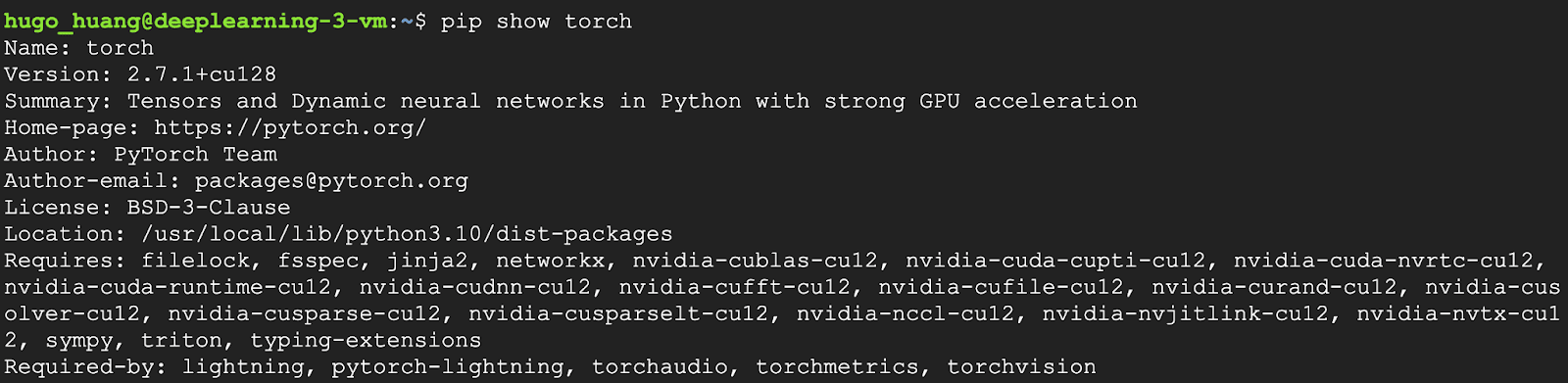
Google’s Deep Learning VMs usually come with PyTorch pre-configured. You can check the installed packages to ensure your favorite libraries are there:
pip show torch
Conclusion
And that’s it! In just a few minutes, you have built a fully configured Deep Learning environment. You can now start running training scripts directly from the terminal.
Don’t forget: Deep Learning VMs with GPUs can be expensive. Remember to stop your instance when you aren’t using it to avoid unexpected charges!
Learn more about Canonical’s offerings on GCP